A common request we’ve heard is, “Can we add a Gender filter (Men, Women, Anyone) above the existing filters in Planning Center Groups?
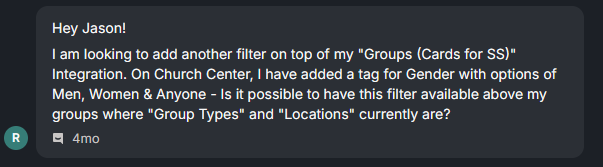
Question from Renovation Church
Good news: you can accomplish this today using Group Tags—and those tags can be exposed as filters on the frontend too. That means you’re not limited to gender; you can build filters for anything your church cares about (life stage, campus, ministry focus, language, and more).
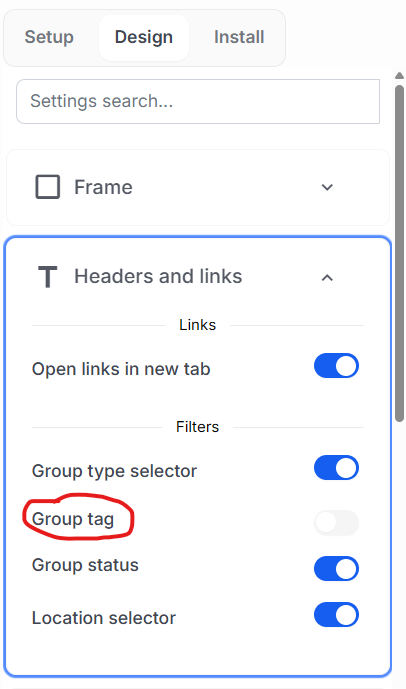
Group Tags | Planning Center
What’s New (and Why It Matters)
Planning Center Groups now supports:
- Filtering groups by Group Tags
- Displaying those tags as filter options on the frontend
- Using tags as a flexible alternative to adding new “one-off” filter types (like a dedicated Gender filter)
This effectively solves the original “Gender filter” request—without requiring a custom filter to be added to the product.
The Simple Solution: Use Group Tags as Filters
If a user wants to filter groups by gender, create tags like:
- Men
- Women
- Anyone
Then apply those tags to the appropriate groups. Once tags are in place, they can be used for filtering internally—and surfaced as frontend filters for the group directory experience.
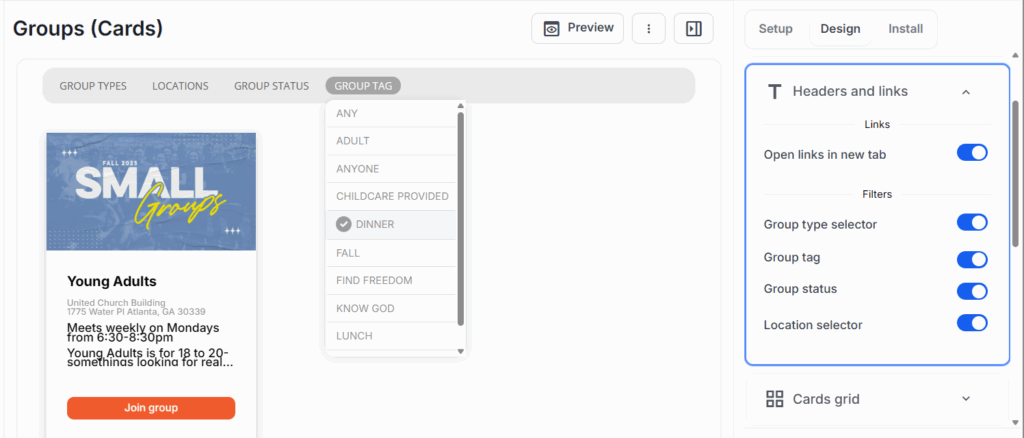
Frontend Filtering
Step-by-Step: How to Set Up Gender Filtering with Tags
1) Create Tags in Planning Center Groups
In Planning Center Groups, create the tags you want people to filter by. For gender, you might use:
- Men
- Women
- Anyone
2) Assign Tags to Your Groups
Apply one or more tags to each group. For example:
- A men’s Bible study → Men
- A women’s prayer group → Women
- A young adults small group open to all → Anyone
Tip: Groups can have multiple tags, so you can layer filters (e.g., Men + North Campus + Weeknights).
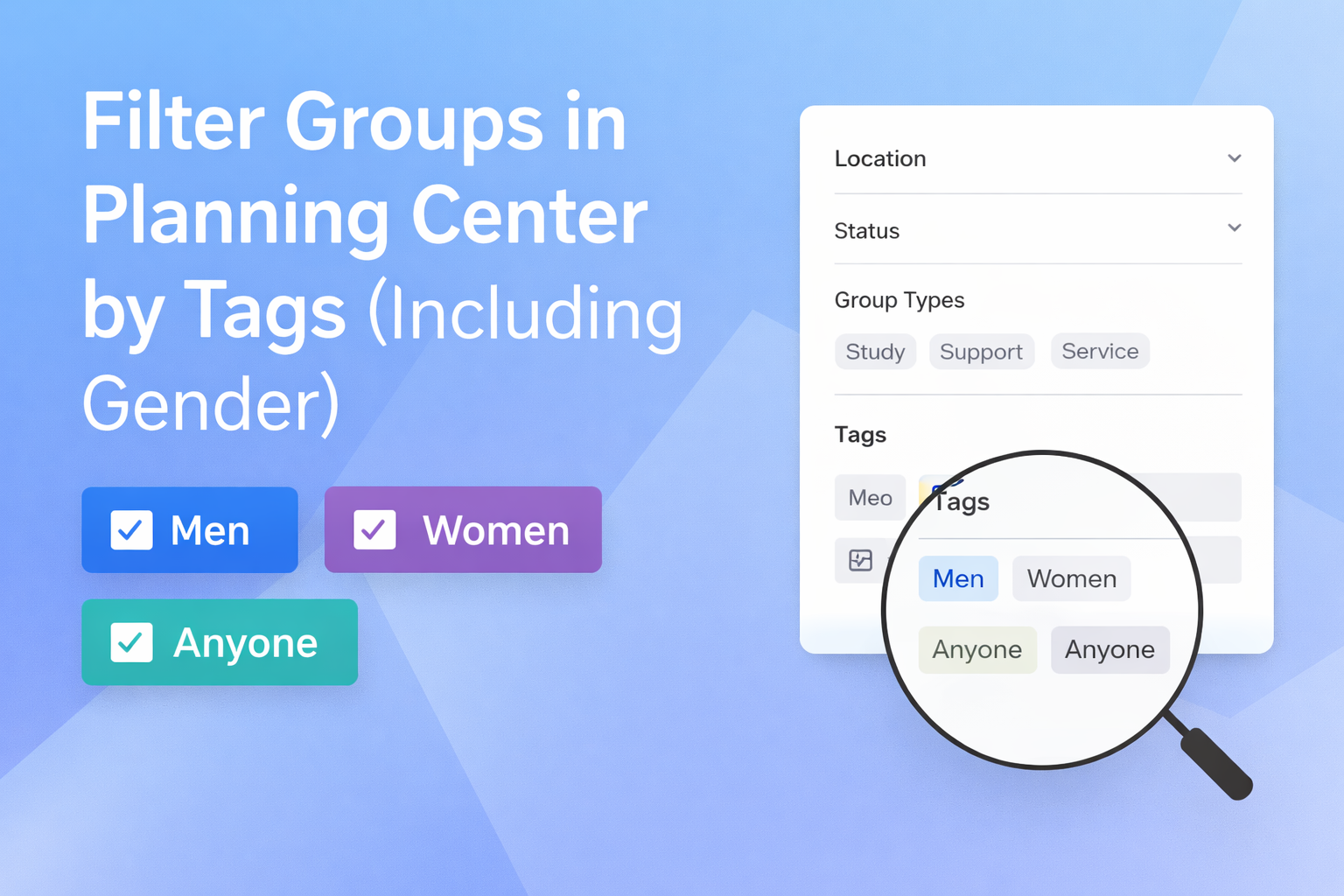
3) Enable Tag Filters on the Frontend
Once your tags are set up and applied, you can expose them as frontend filter options so people can narrow down groups based on those tags.
This gives you the “Gender filter” behavior people wanted—powered by tags instead of a hardcoded filter category.
How This Fits with Existing Filters
Here’s how tags compare to the standard filters most people see:
- Location and Status are typically built-in and always present.
- Group Type usually shows all types unless a user filters.
- Group Tags are customizable, and can be used to create new filtering dimensions (like Gender).
Why Tags Are Better Than a Dedicated “Gender” Filter
Using tags is more scalable because it:
- Works immediately (no custom product work required)
- Supports unlimited categories beyond gender
- Keeps your system flexible as your church grows and changes
- Creates consistent filtering across internal and frontend experiences
In other words: instead of adding one new filter (Gender), you gain a framework for many filters (Tags).
Other Tag Ideas Churches Commonly Use
Once you start using tags, churches often expand beyond gender to include things like:
- Life Stage: Students, Young Adults, Married, Parents, Seniors
- Campus: Downtown, North, West
- Group Focus: Bible Study, Fellowship, Support, Outreach
- Language: English, Spanish, Bilingual
- Schedule: Weeknights, Weekends, Morning, Evening
Resolution Summary
- Original request: Add a Gender filter (Men, Women, Anyone)
- Solution now available: Use Group Tags and enable tag-based filtering
- Result: Users can filter groups by gender (and more) on the frontend.