Your team knows where the event information lives. Someone visiting your website for the first time does not.
They may arrive from a text message, remember an announcement from a weekend service, or open the site while checking whether an event fits their family’s schedule. Their next step should be easy to find.
You do not need to redesign the whole website to make progress. Start with one event and a short check.
Minute 1: Start where a visitor starts
Open your church homepage on your phone. Choose an upcoming event that matters to your community, then try to reach it using only the links you can see.
Is “Events” or “What’s happening” easy to recognize? Or does the path depend on knowing an internal ministry name?
Write down where you hesitate. A clear label is more useful than a clever one if people cannot tell where it leads. If the event is mentioned in a homepage banner, follow that link too. Both paths should lead somewhere useful.
Minute 2: Make the essentials easy to spot
Open the event details and look for five answers: what is happening, who it is for, when it starts, where to go, and what to do next.
Keep those details in readable page text rather than asking a graphic to carry the whole explanation. A beautiful event image can support the invitation, but a visitor should not need to zoom into it to find the start time.
If your church has several locations, name the campus and include a useful address or directions link. If there is a cost or registration deadline, make that clear before someone starts signing up.
Minute 3: Follow the next step
Tap the registration or information button. Does it open the right event, or send you to a general page where you have to search again?
A button such as “Register for the workshop” tells people more than “Click here.” If registration is not required, say so and explain what they should do instead.
Follow the public journey far enough to spot a broken link or unexpected login screen. You do not need to submit a test registration or create a person’s record to check whether the handoff makes sense.
Minute 4: Check the phone experience
Return to the event listing and read it at a normal text size. Can you distinguish the titles and dates? Can you tap the link comfortably? Does a popup cover the information you need?
Try the same path with a longer event title. A layout that works for one short name may become difficult to scan when a title wraps.
If possible, ask a colleague who did not build the page to find the event. Give them the task without explaining the route, then watch where they pause.
Minute 5: Check where changes begin
Compare the website listing with the place your team maintains event details. Do the date, location and next-step link agree?
Choose a clear place to update the information first, and give someone responsibility for checking the public result. A shared calendar or connected display can reduce repeated copying, but the source details still need to be correct.
Before you finish, choose one change you can make today. Fixing a vague button or an incorrect location is a useful result from a five-minute check.
Copy this checklist for your team
☐ A newcomer can find the event from the homepage.
☐ The title, audience, date, time and location are clear.
☐ The next-step link opens the right destination.
☐ The page is readable and usable on a phone.
☐ The website matches the information our team maintains.
Assign the follow-up: Event checked: ____ · One change to make: ____ · Owner: ____ · Check again by: ____
Put the information where people are looking
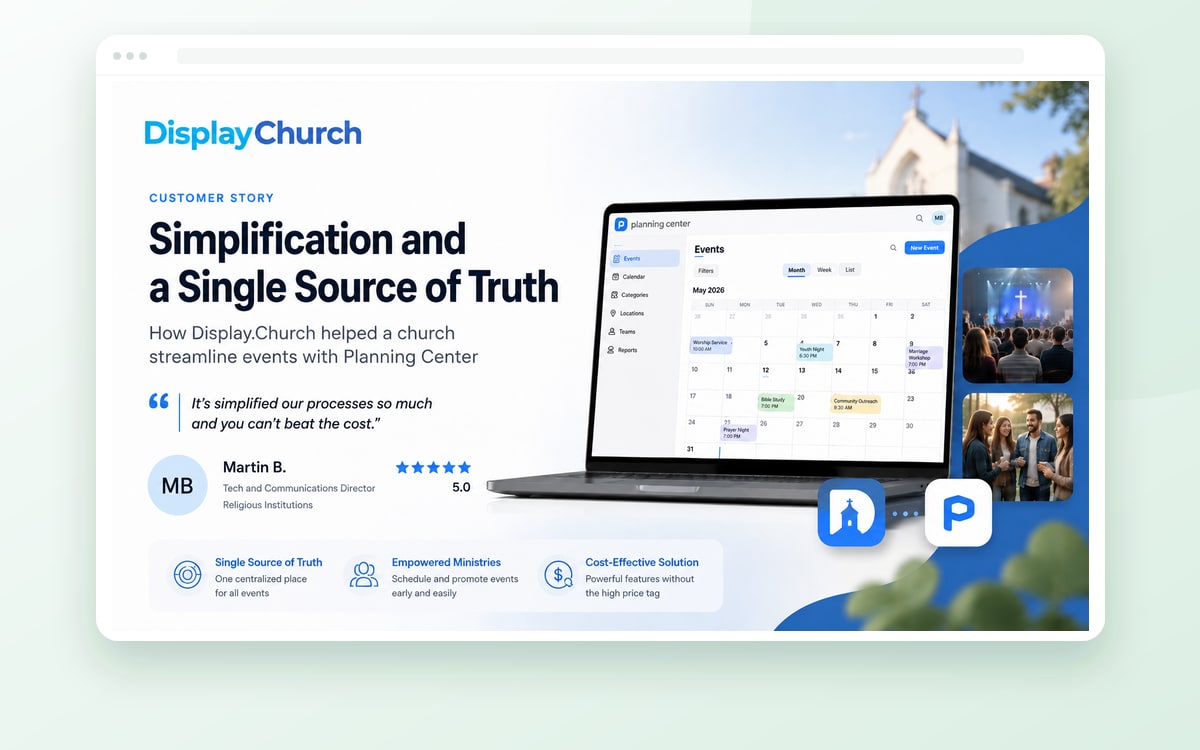
If keeping event details on your website means copying them out of your church software, a connected display may help. Display.Church brings connected event information into website displays; its installation guide explains how to publish and embed a widget.
The display is only part of the journey. Keep the invitation clear, check the next-step link, and make sure the underlying details are accurate.
Explore Display.Church calendar demos to see whether a connected event display fits your website.
Sources and further reading
Display.Church installation overview · Connected calendar examples