Help people find what’s next at your church—with a calendar that’s easier to browse and widgets that fit the way you work. This roundup brings together the improvements we announced from August 31 through November 10, plus a look at what we’re building next.
Help people find their next event
A useful calendar keeps the next step easy to find. These changes give your church more control over what visitors see and how they move through your events.
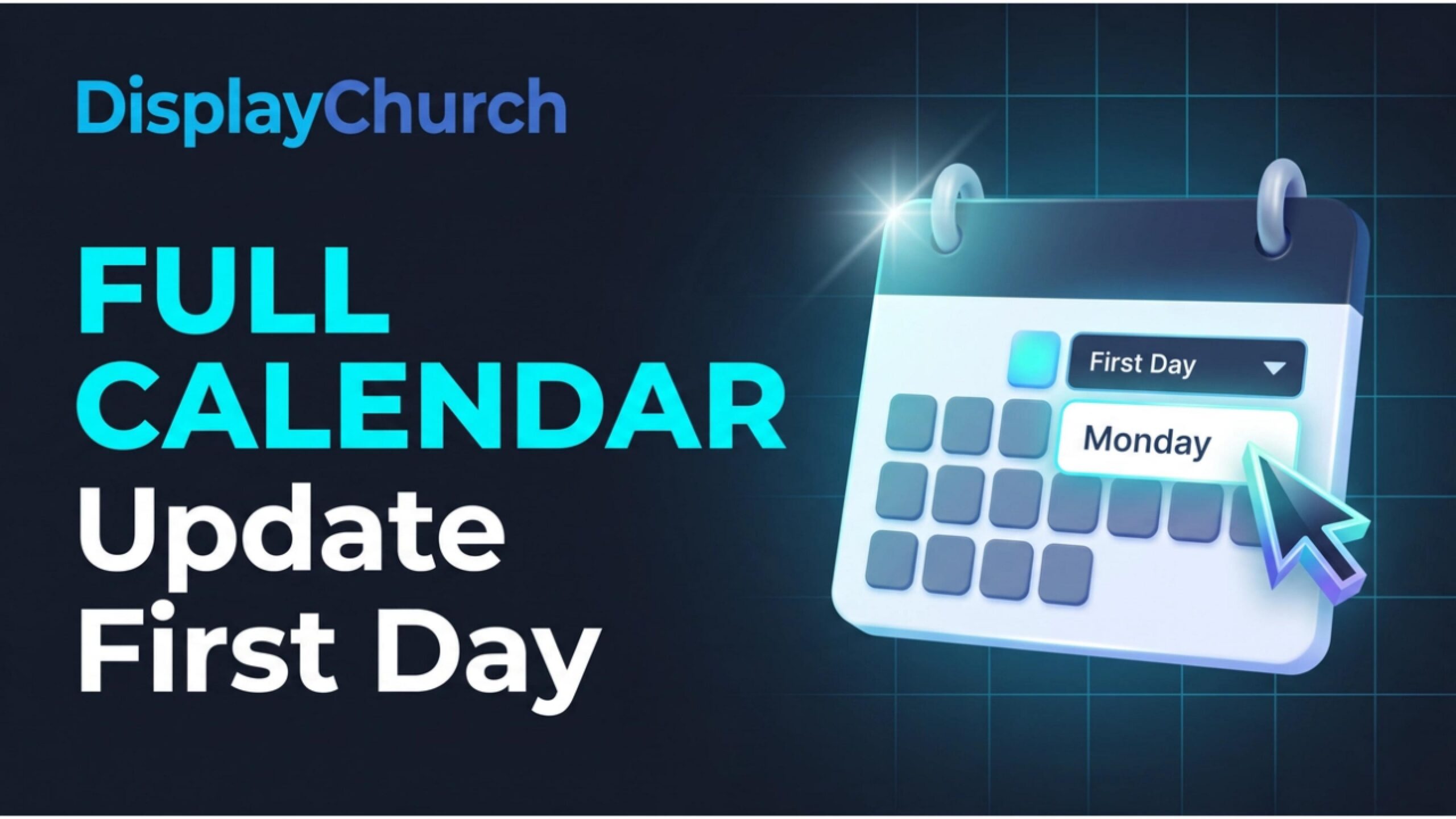
Start the week your way
Choose the first day of the week in Full Calendar so your calendar follows the rhythm of your church.
Read the update ↗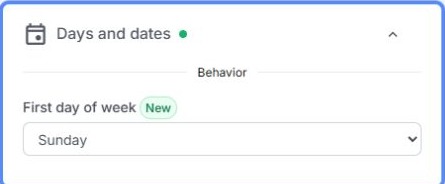
Keep Weekly View on the same page
Weekly View now loads the date range that matches your saved week start, helping prevent events on the final day from being left out.
Read the update ↗Full Calendar
Make busy dates easier to spot on mobile
Larger event-count badges and a clickable date cell help phone visitors find a day’s events more easily.
Read the update ↗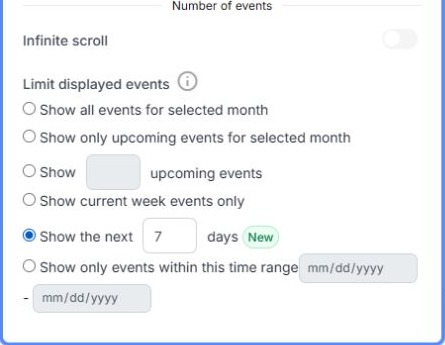
Show what’s coming up next
Display a rolling 1–31 days of events, so a busy week and a quieter week both get the right amount of space.
Read the update ↗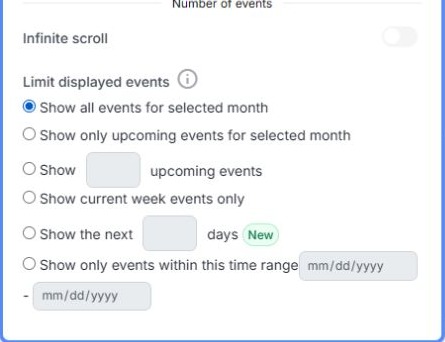
Keep the next recurring event visible
Upcoming occurrences stay visible when selected-month views and merged recurring events are used together.
Read the update ↗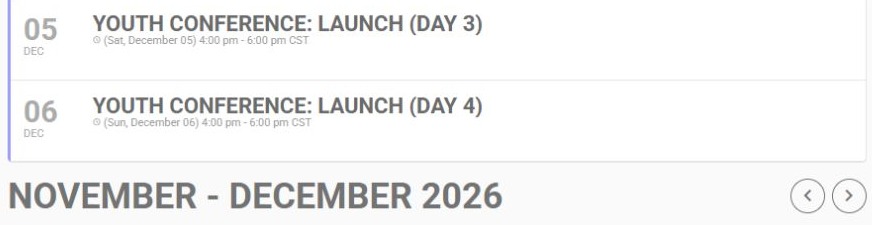
Keep browsing from the end of the list
Visitors can move between months at the bottom of Events List, without scrolling back to the top.
Read the update ↗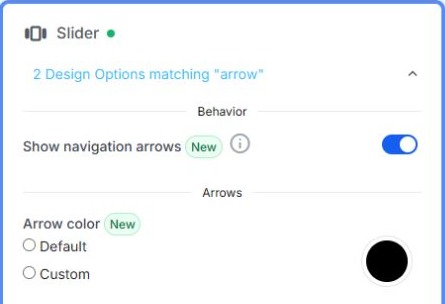
Match navigation to your design
Customize Slide Calendar’s navigation arrows, including their colors, to suit the page around your widget.
Read the update ↗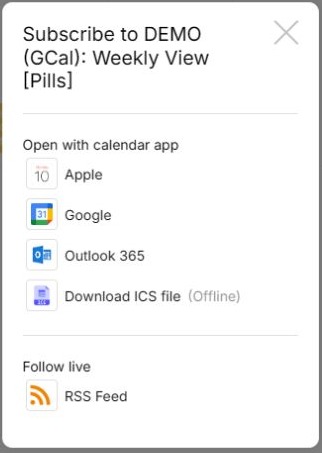
Help subscribed calendars stay accurate
Improved recurring-event and time-zone handling helps subscribers receive accurate event details. External calendar apps still control how often they refresh.
Read the update ↗Make the builder work better for you
Small editing improvements add up when you’re preparing a page for Sunday. Find new options faster, give your design more room, and keep your cards tidy.
Get more room to focus
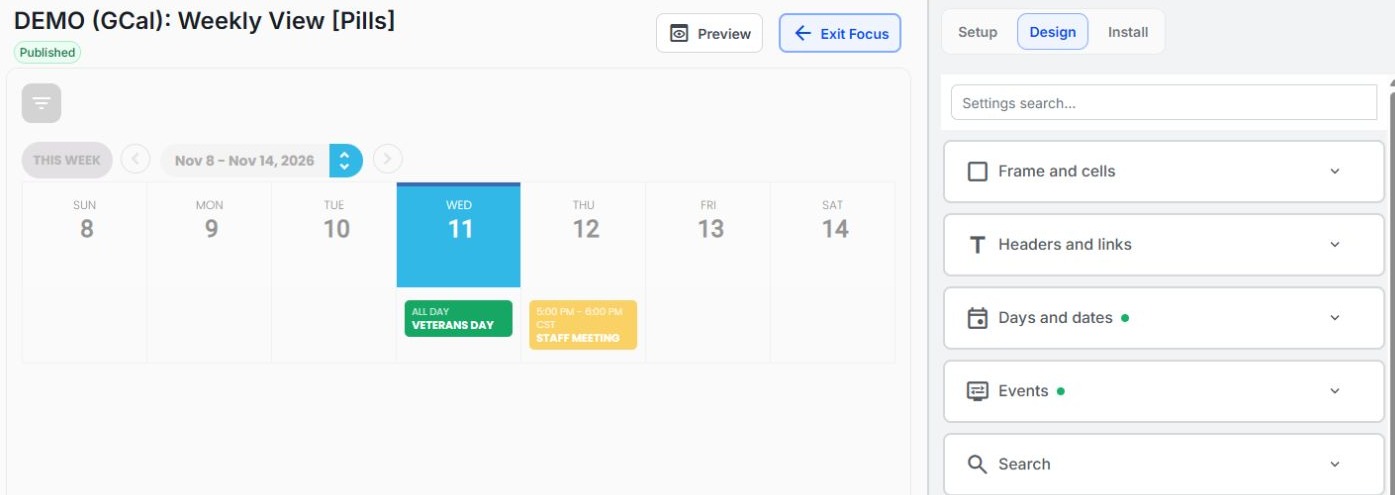
Focus Mode gives you a dedicated builder workspace for the widget you’re editing. Exit Focus takes you back to the regular view.
Read the update ↗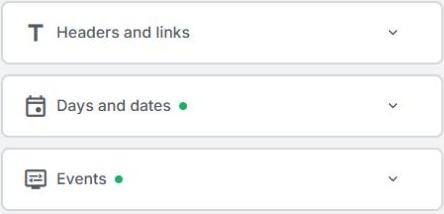
Find the new controls faster
NEW badges and green section markers point you toward recent additions, including options tucked inside collapsed Design settings.
Read the update ↗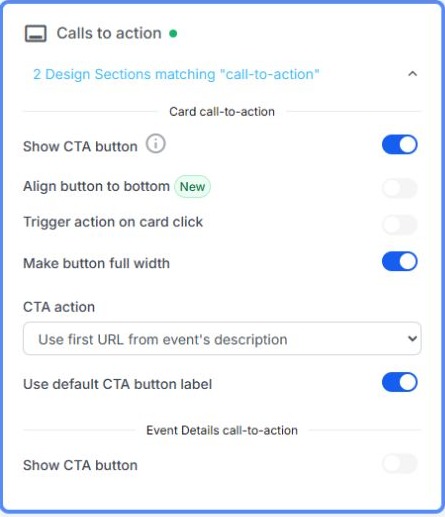
Give cards a cleaner finish
Align buttons at the bottom of supported calendar and Groups cards, even when descriptions have different lengths.
Read the update ↗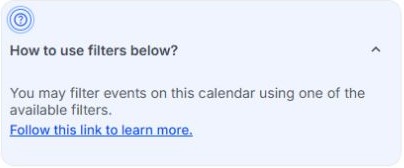
Read help without losing your place
Better spacing makes longer help messages easier to scan while you customize your widgets.
Read the update ↗A smoother experience with the tools you use
Use the sections that match your setup. These updates apply to the named integration or feature; you don’t need to change the tools your church already uses.
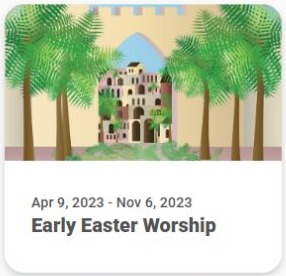
Make signup dates easier to trust
Planning Center Signup Forms now handle shortened date ranges more reliably, helping visitors see when an opportunity starts.
Read the update ↗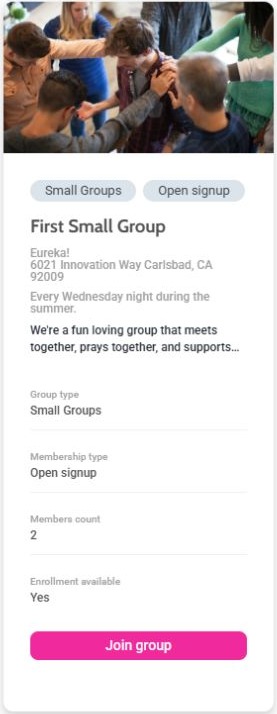
Make group descriptions easier to read
Groups Card Grid displays multi-paragraph descriptions with more consistent spacing, including descriptions imported from Pushpay/CCB.
Read the update ↗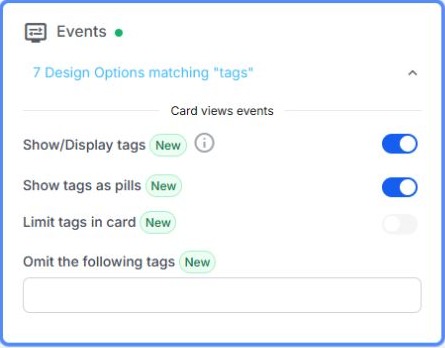
Keep event categories in view
Google Calendar tags can appear across more applicable layouts, helping visitors identify ministries, audiences, or event types at a glance.
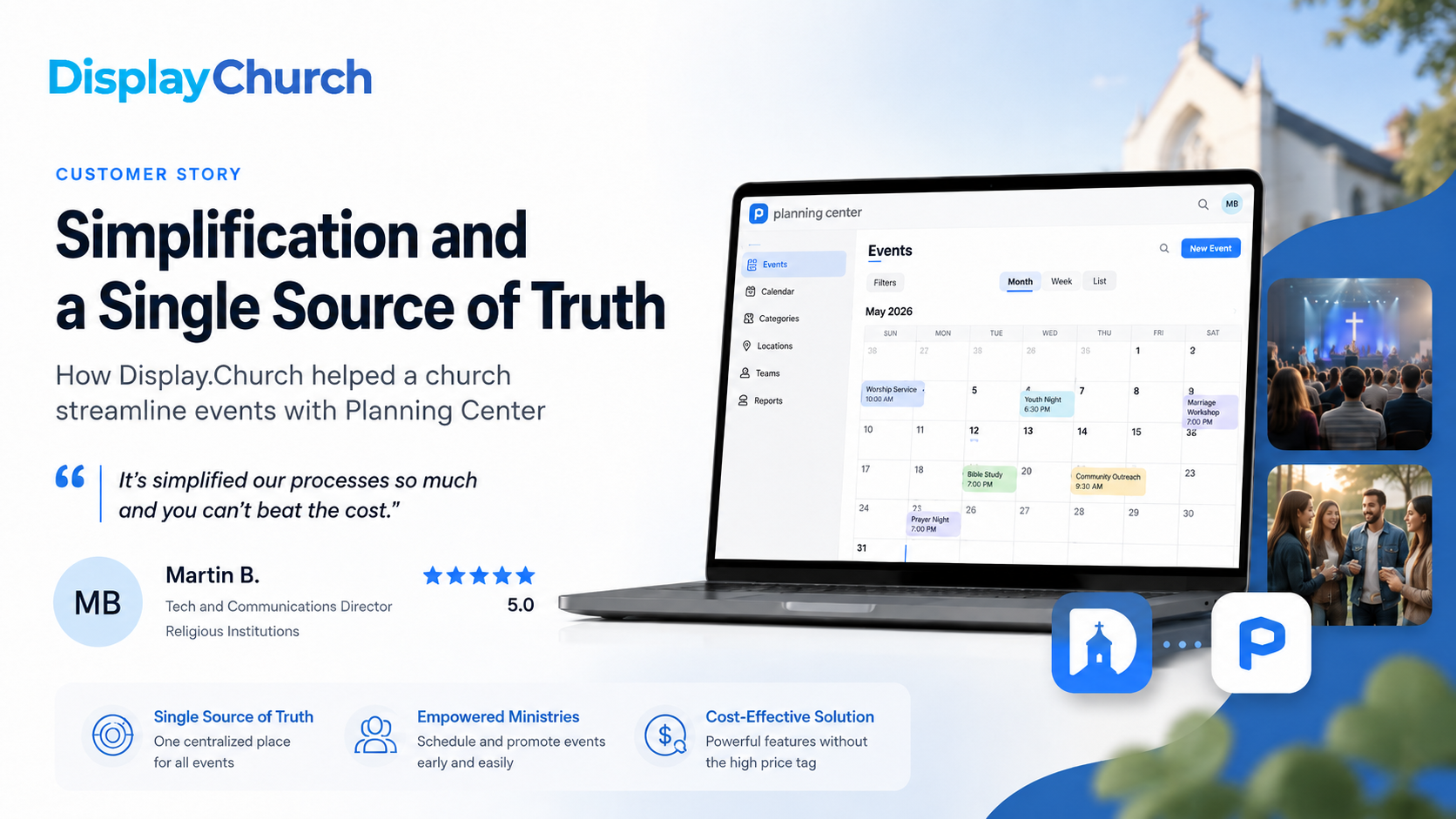
Read the update ↗Thinking about your wider event workflow? Read Arbor Road’s story for another perspective on reducing manual entry. That example uses Pushpay/CCB.
Bring the details together on your website and in email
If you use Nucleus or share a calendar through Mailchimp, these improvements help the finished experience match the setup you chose.
Set up a Nucleus calendar with clearer guidance
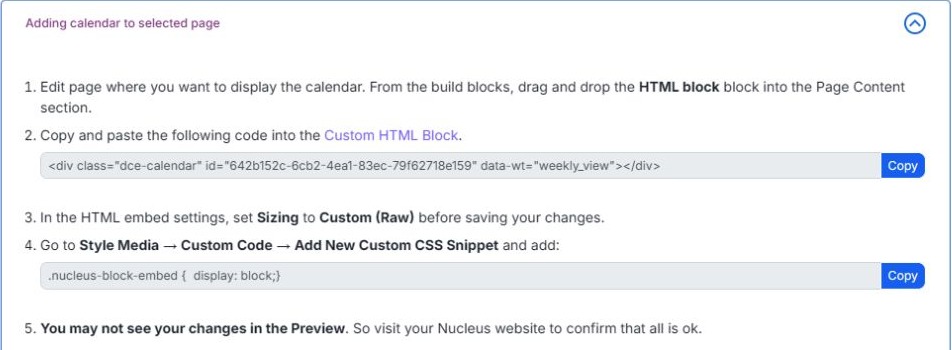
Expanded instructions bring the required layout, sizing, and CSS steps together. Check the result on your live Nucleus site after saving.
Read the update ↗
Help widgets appear when visitors follow a link
Nucleus guidance explains when to use a full-URL action so a destination page containing your widget loads correctly.
Read the update ↗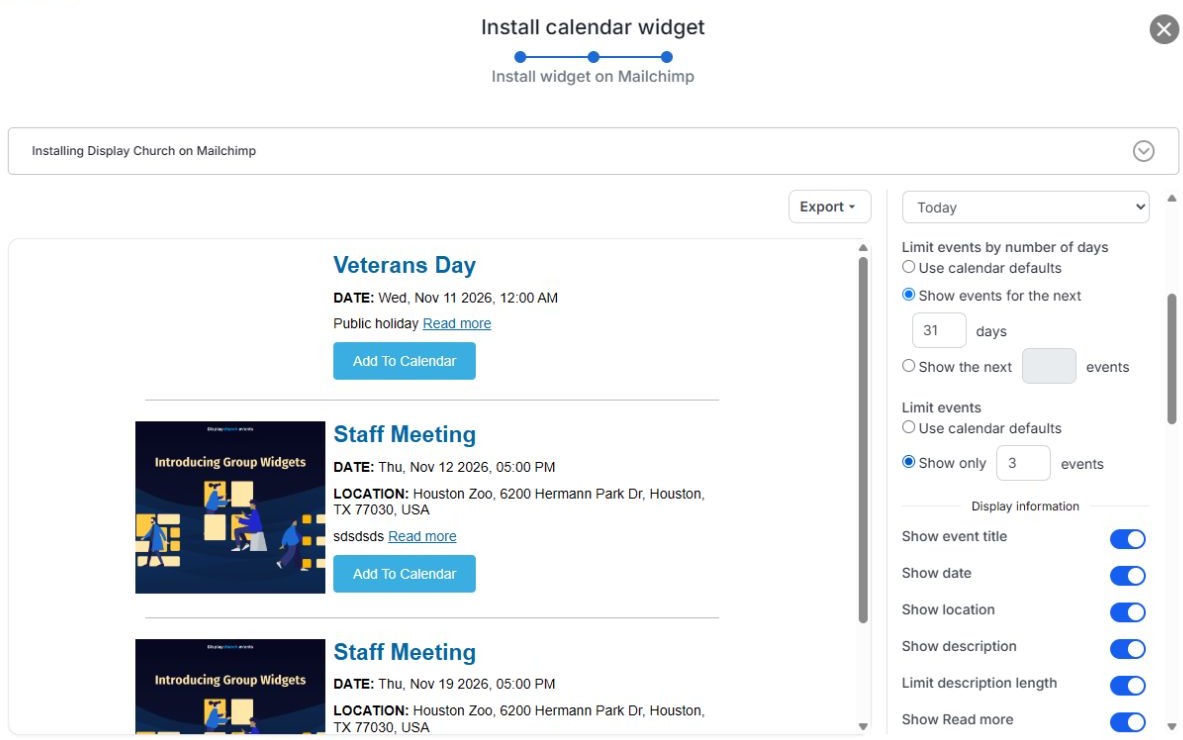
Send the number of events you selected
Mailchimp calendar code now respects your selected event count and keeps the first event in the feed. Regenerate and replace existing code to apply the fix.
Read the update ↗Clearer choices for Free accounts
If you’re using Display.Church on a Free plan, here’s what to know about keeping content current and checking an available offer.
Know when to sync manually
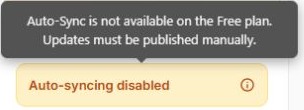
Free and Forever Free plans keep manual syncing available while Auto-Sync is disabled. Clearer notices explain how your plan works.
Read the update ↗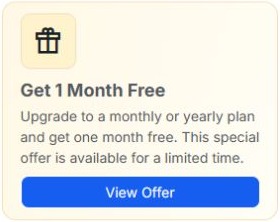
Check an offer in your account
Eligible Free accounts can open View Offer for a one-time promotion: a free first month on monthly billing, or one twelfth off the first annual payment. Regular pricing applies at renewal; availability and expiry depend on your account.
Read the update ↗